
Table des matières (13)
Pokémon Champions Switch 2: The 4K Docked-Mode Bug and the Fastest Fix
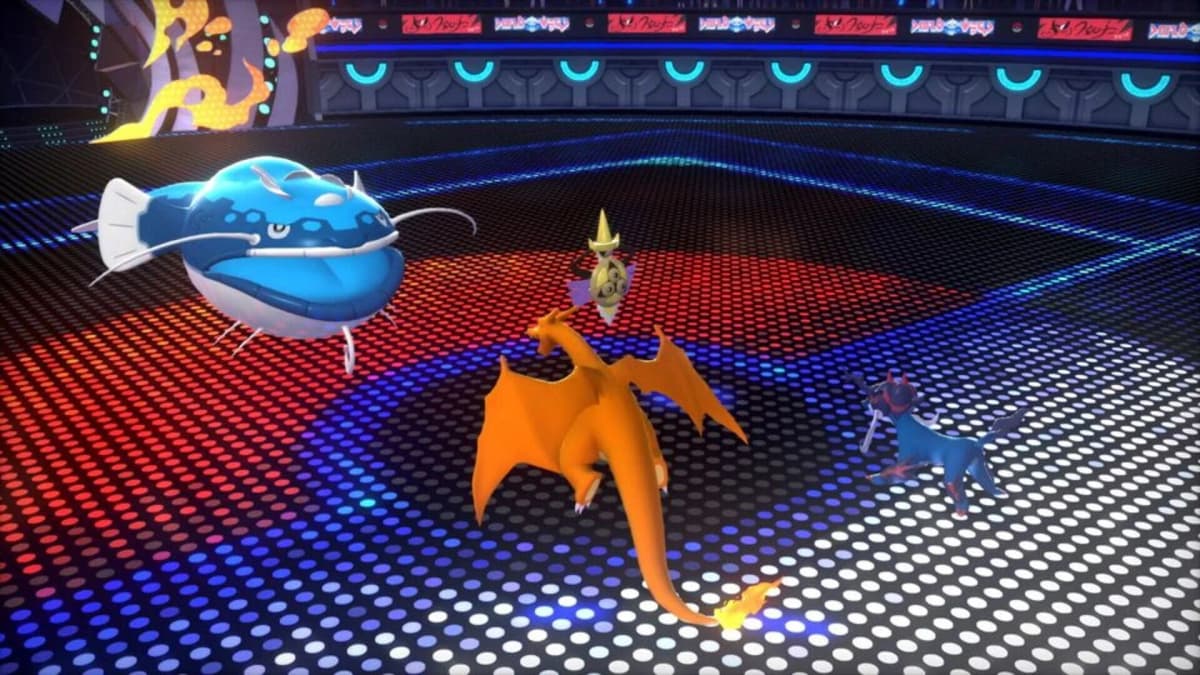
If Pokémon Champions looks soft, jaggy, and suspiciously like 1080p on your 4K TV, you’re probably not imagining it. On some Switch 2 setups, the game boots in docked mode at 1920×1080 instead of the native 3840×2160 it’s supposed to use.
The current workaround is simple but annoying: start the game docked, undock the console once you’re in the game, then re-dock it. That “resets” the HDMI handshake and, for affected players, finally triggers a proper 4K output.
Below is how to do it step by step, how to be sure you’re actually in 4K, and what to check on your cable, dock, console and TV to rule out a bad setup before blaming the game.
Specifications
How the Bug Shows Up: Symptoms in Docked Mode
On an affected setup, you do everything “right”: Switch 2 in the dock, TV says it’s getting a 4K signal, yet Pokémon Champions looks worse than other games:
- Edges are noticeably more aliased (stair-steppy), especially on character outlines and UI elements.
- Fine text and icons look a bit smeared compared to other native 4K Switch 2 titles.
- Side-by-side with another game, Champions looks like it’s being upscaled from a lower resolution.
In many cases, the console is actually outputting 1080p over HDMI when you launch the game in docked mode, despite the system and game being perfectly capable of 4K.
Step-by-Step Workaround: Forcing Native 4K in Pokémon Champions
Assuming your TV and hardware are 4K-capable (we’ll verify that next), here’s the most reliable sequence players have found to force 4K in Pokémon Champions on Switch 2:
- 1. Start docked as usual.
Place your Switch 2 in the dock. Make sure the TV is on the correct HDMI input. From the Home menu, launch Pokémon Champions. - 2. Reach the main menu or in-game area.
Wait until you see the title screen, main menu, or you’re actually in a battle/overworld scene. The important part is that the game is fully running, not just on a loading logo. - 3. Undock the console.
Lift the Switch 2 out of the dock. The TV will go black or switch back to its default screen, and the game will transfer to the handheld display. - 4. Wait a couple of seconds in handheld.
Give it 2-3 seconds for the handheld mode to stabilize. You don’t need to change any settings; just let it “settle” in portable mode. - 5. Re-dock the console.
Put the Switch 2 back into the dock. The TV should detect the HDMI signal again. This is the moment where, on affected machines, the output finally flips to native 4K instead of 1080p. - 6. Confirm visually (or via TV info).
If your TV has an “Info” or “Display” button, check it now – you should see 3840×2160/60Hz listed. Even if you can’t see that, image sharpness (especially UI text) should look closer to other 4K Switch 2 titles.
You’ll typically need to repeat this undock/re-dock dance each time you fully close and relaunch Pokémon Champions. It doesn’t usually persist between game sessions.
Before You Blame the Game: 4K Setup Checklist
This bug only matters if your setup can actually do 4K. If something in your chain is limited to 1080p, no software workaround will help. Run through this list once; it removes most of the doubt.
1. Cable and Dock: Make Sure They’re Truly 4K-Capable
For consistent 4K output on Switch 2, you want:
- An Ultra High Speed HDMI cable (certified for 4K/60). Older or generic cables often silently fall back to 1080p.
- A dock that supports 4K/60 output. The official Switch 2 dock does. Some third-party USB‑C docks do as well, but many older “Switch docks” top out at 1080p by design.
If another 4K-capable game or even the Switch 2 Home menu never shows as 4K on your TV, your problem is likely here, not in Pokémon Champions.
2. Console Settings: Enable 4K in System Menu
On the Switch 2 itself:
- Go to System Settings > Display.
- Under TV Resolution, first select Automatic.
- With the console docked and the TV on, open that menu again. If your TV and cable are good, you should see an option for 2160p (4K).
- If 2160p is available, try manually selecting it. If you only see 1080p or 1440p, your TV input or cable is likely the limiting factor.
Important detail: those higher resolution options only appear when the Switch 2 is actually docked and detects a compatible display.
3. TV HDMI Port Settings: “Enhanced” or 4K Mode
Modern TVs love to hide their full capabilities behind per-port settings. Check:
- Are you on an HDMI port that actually supports 4K/60? Many TVs only enable full bandwidth on one or two ports.
- In the TV’s settings, find the HDMI input you’re using and switch it to something like “Enhanced”, “Extended”, “4K”, “HDMI 2.1” or similar wording.
- Avoid “Standard” or “Compatibility” modes, which can cap you at 1080p or restrict color formats.
If your TV has an on-screen resolution info overlay, use it while switching these options; you’ll often see it jump from 1080p to 2160p as soon as the right combination is set.
4. Quick Visual Checks for Native 4K
Even without digging into menus, you can usually tell when Pokémon Champions is truly in 4K after the workaround:
- Small text in menus and battle HUD looks crisp, not slightly fuzzy.
- Fine outlines on Pokémon and trainers have smoother edges and less shimmering when the camera moves.
- Compared to the pre-workaround image, everything has a more “printed” look rather than soft upscaling.
If you see no visual change at all between before and after the dock/undock sequence, your system might have been in 4K already, or something else in the chain is still capping you at 1080p.
Why This Looks Like a Game Bug, Not a Switch 2 Problem
The key clue is that other Switch 2 titles can output native 4K to the same TV, via the same dock and cable, without any tricks. That strongly points to Pokémon Champions’ resolution handling rather than a systemic hardware flaw.
What’s probably happening under the hood is roughly this:
- The game asks the system what resolution to use at a bad moment during the HDMI handshake when you boot docked.
- It “locks in” 1080p and doesn’t re-query after the connection fully negotiates 4K.
- Undocking and re-docking forces a fresh handshake, and this time the game catches the correct 4K mode.
Developers have acknowledged they’re working on patches for launch issues in general, and a fix here would likely involve changing how and when the game reads the available display modes. Until that patch lands, the workaround is your best bet.
✓ PROS
+
Workaround is quick once you know it
+
No need to buy new hardware if other games already run at 4K
+
Lets you enjoy the sharper image the Switch 2 version is meant to deliver
✗ CONS
–
Must be repeated almost every time you relaunch the game
–
Only helps if your setup is genuinely 4K-capable
–
Doesn’t change the 30 fps cap, just image clarity
Bottom Line: When the Workaround Helps-and When It Won’t
If Pokémon Champions is the only title that looks suspiciously soft on your 4K TV, and your Switch 2 plus other games already prove your setup can do 4K, this dock/undock/re-dock sequence is a practical temporary fix.
If you can’t get any game or even the system interface to show as 4K, focus on the hardware checklist instead: use an Ultra High Speed HDMI cable, the right HDMI port on your TV in “enhanced”/4K mode, and confirm 2160p in the Switch 2’s Display settings. No software patch will override a 1080p cable or a “Standard” HDMI input mode.
For now, the bug is more of an image quality annoyance than a performance killer. Once you’ve nailed your setup and memorized the short workaround, you can at least get the sharp 4K picture the Switch 2 version of Pokémon Champions is supposed to deliver while waiting on an official fix.
7/10 for the current Switch 2 docked experience
VERDICT
The docked-mode resolution bug in Pokémon Champions is real but manageable. With a correct 4K setup and the undock/re-dock workaround, you can recover native 4K today instead of living with blurry 1080p upscaling until a patch arrives.